How to file a Paid Leave Oregon weekly intermittent claim
If you have a Paid Leave Oregon claim with an intermittent schedule, you need to file for benefits each week you take Paid Leave. An intermittent schedule means you may work some days during your leave.
Just a reminder: If you are taking consecutive leave, which means you take your leave all at once without working, you don’t have to file a claim each week.
You can file your weekly claim starting the Sunday after the week you took leave, and you have up to 30 days after that week ends to file.
You can file your weekly claim in your Frances Online account or call our phone claim system at 833-854-1122. Both options are available 24 hours a day, seven days a week.
We make regular updates to Frances Online, so the screens you see may look a little different from the images shown here.
Follow these steps
How to file a weekly intermittent claim
Step 1
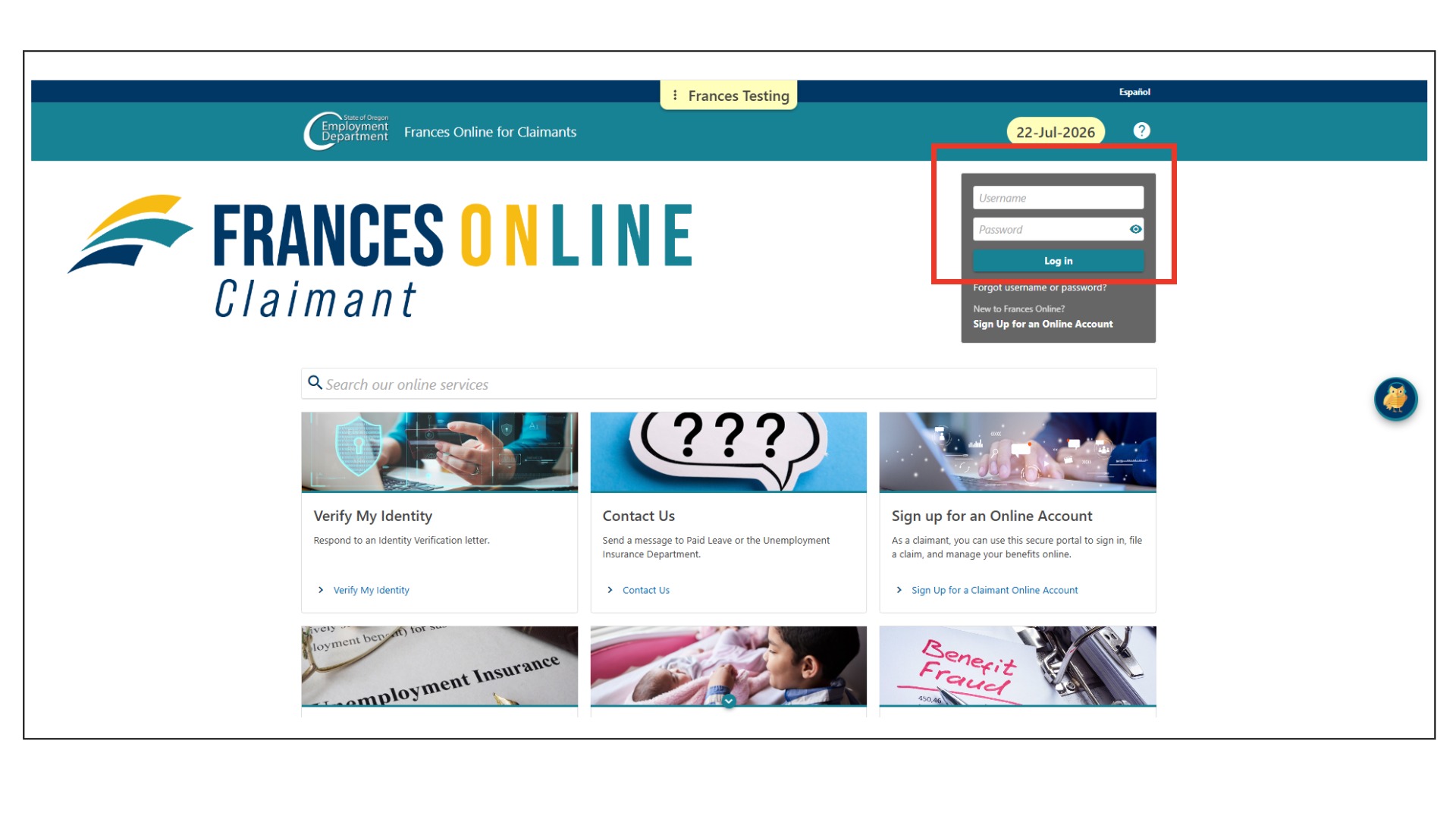
Go to the Frances Online Claimant Portal and log in.
There are two ways to get there:- Go to frances.oregon.gov and go to the Employees and Claimants panel to select the “Log on to Frances Online” link
- Go directly to frances.oregon.gov/claimant
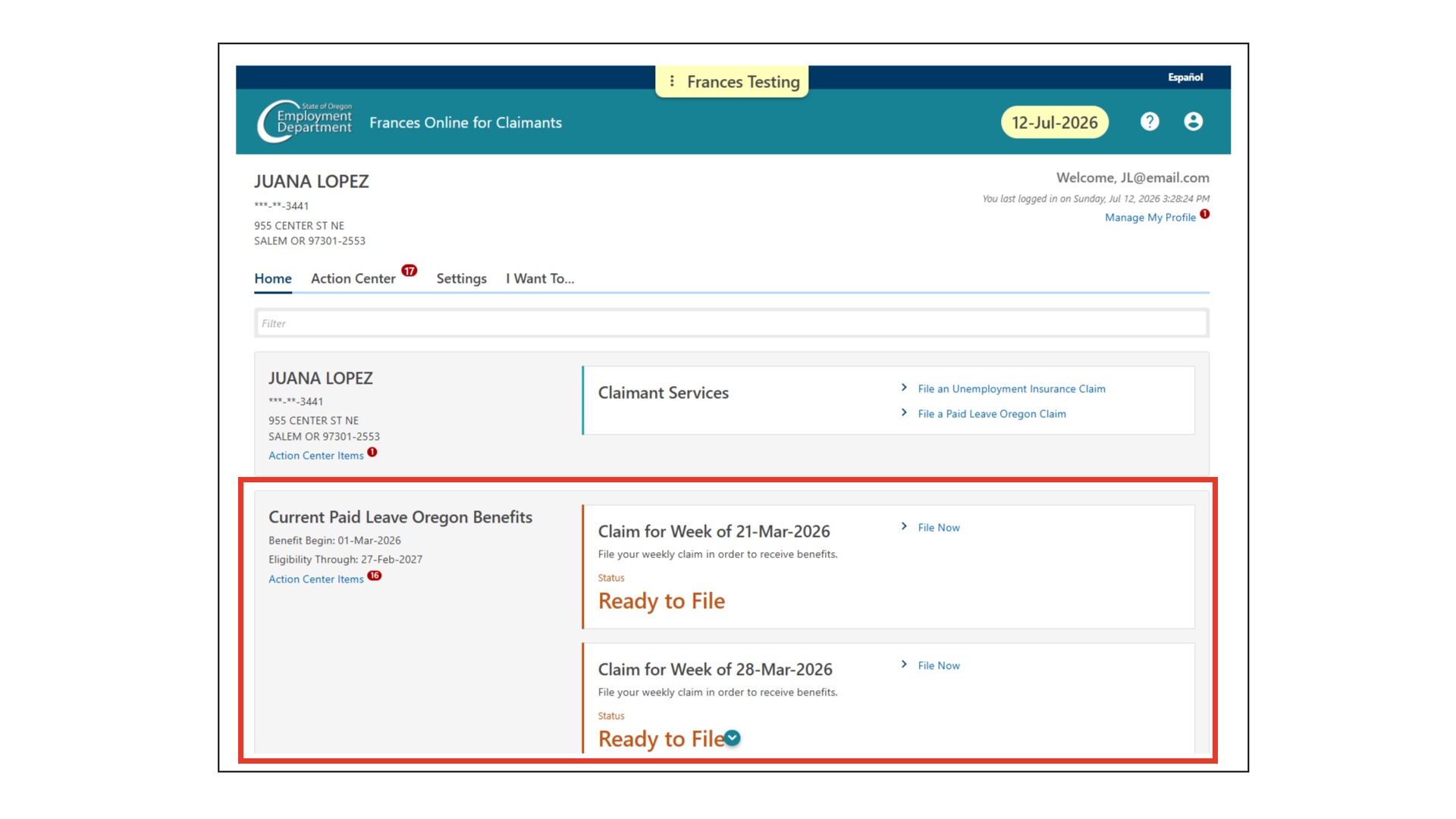
On your Home screen, find the Current Paid Leave Oregon Benefits Panel.
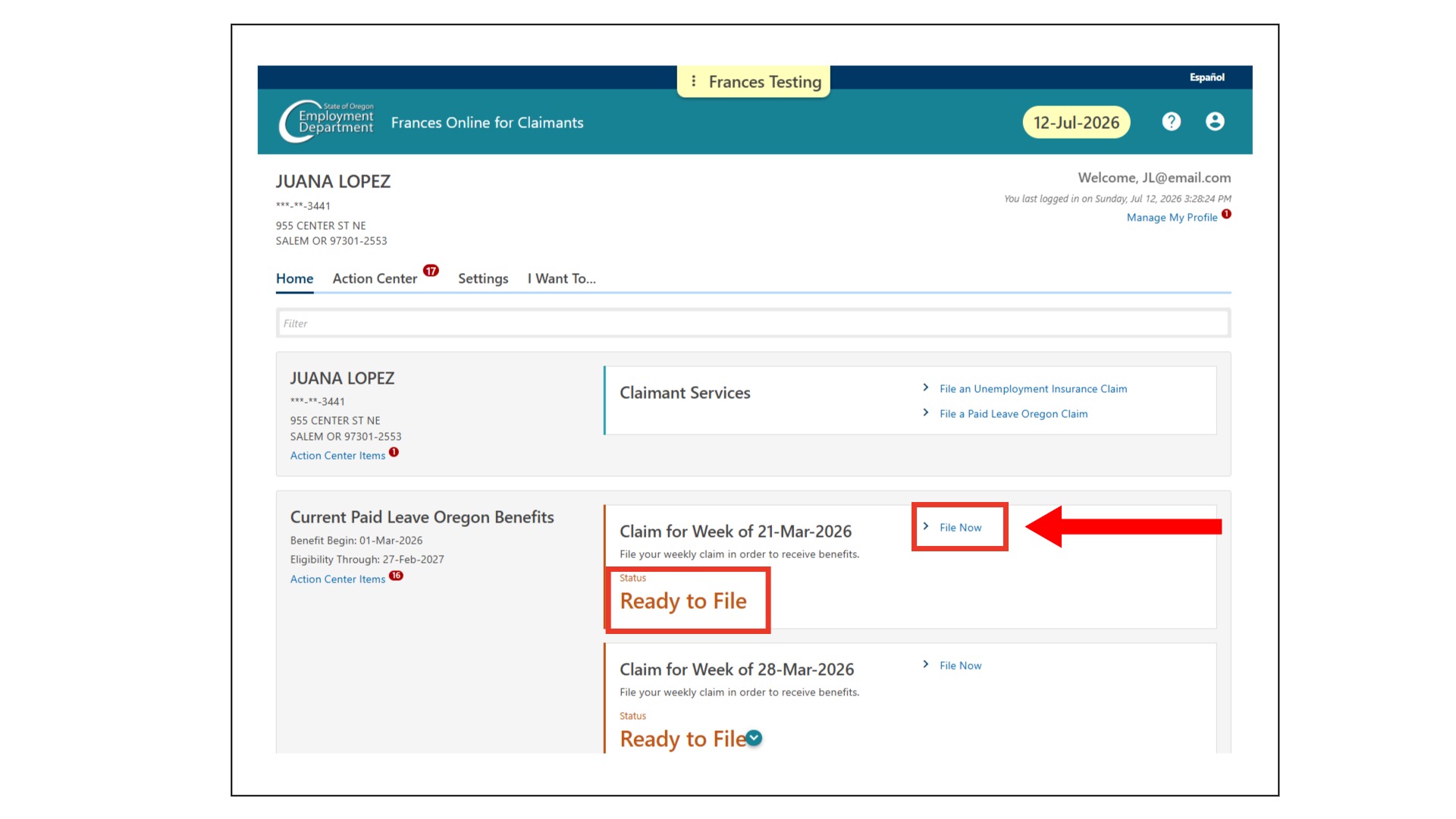
Introduction Screen
If you have weeks ready to file, you will see them listed here, with an orange “Ready to File” status. Select the “File Now” link for the week you want to file a claim.
Tip: If you didn’t take any Paid Leave days during a week, you don’t need to file a claim for that week.
Note: If you don’t see the “File Now” link, we may be still processing your application. You can’t file for a week of benefits until we’ve approved your benefits.
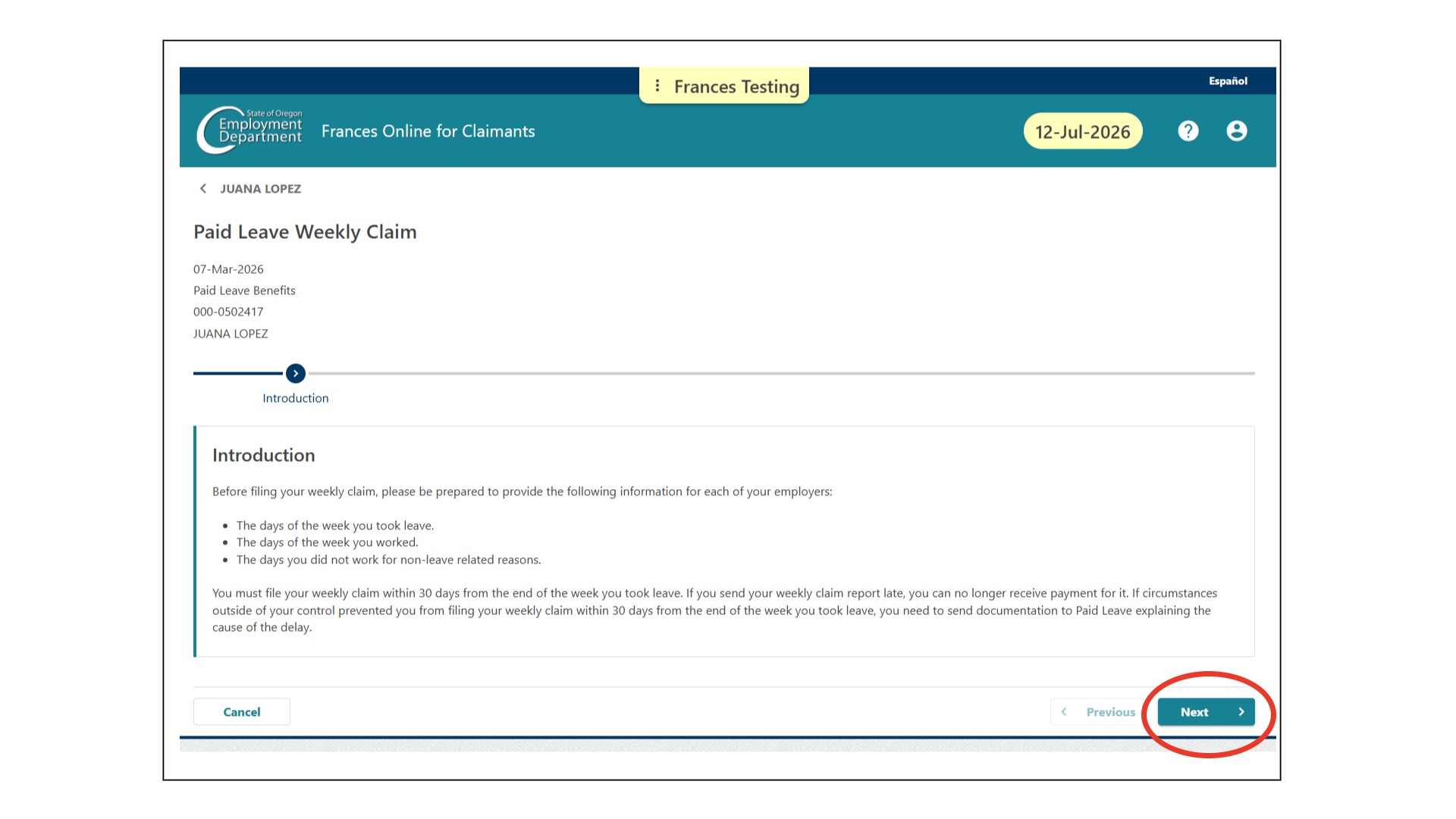
This is the introduction screen, and it lists the information you will need to file for a week of benefits. Select “Next.”
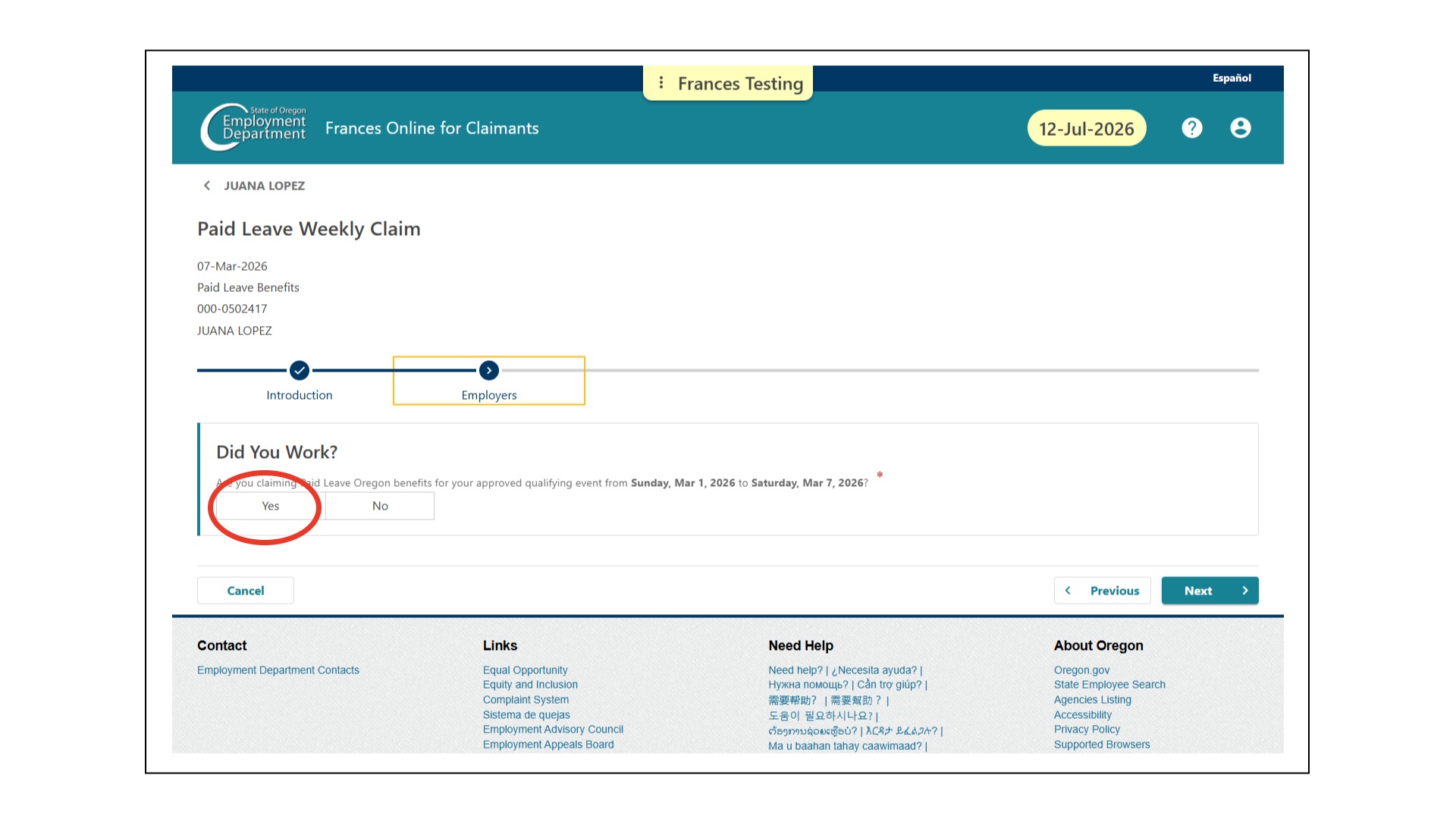
Did you work?
In the Did You Work? screen, select “Yes” if you are claiming benefits for the week shown on the screen.
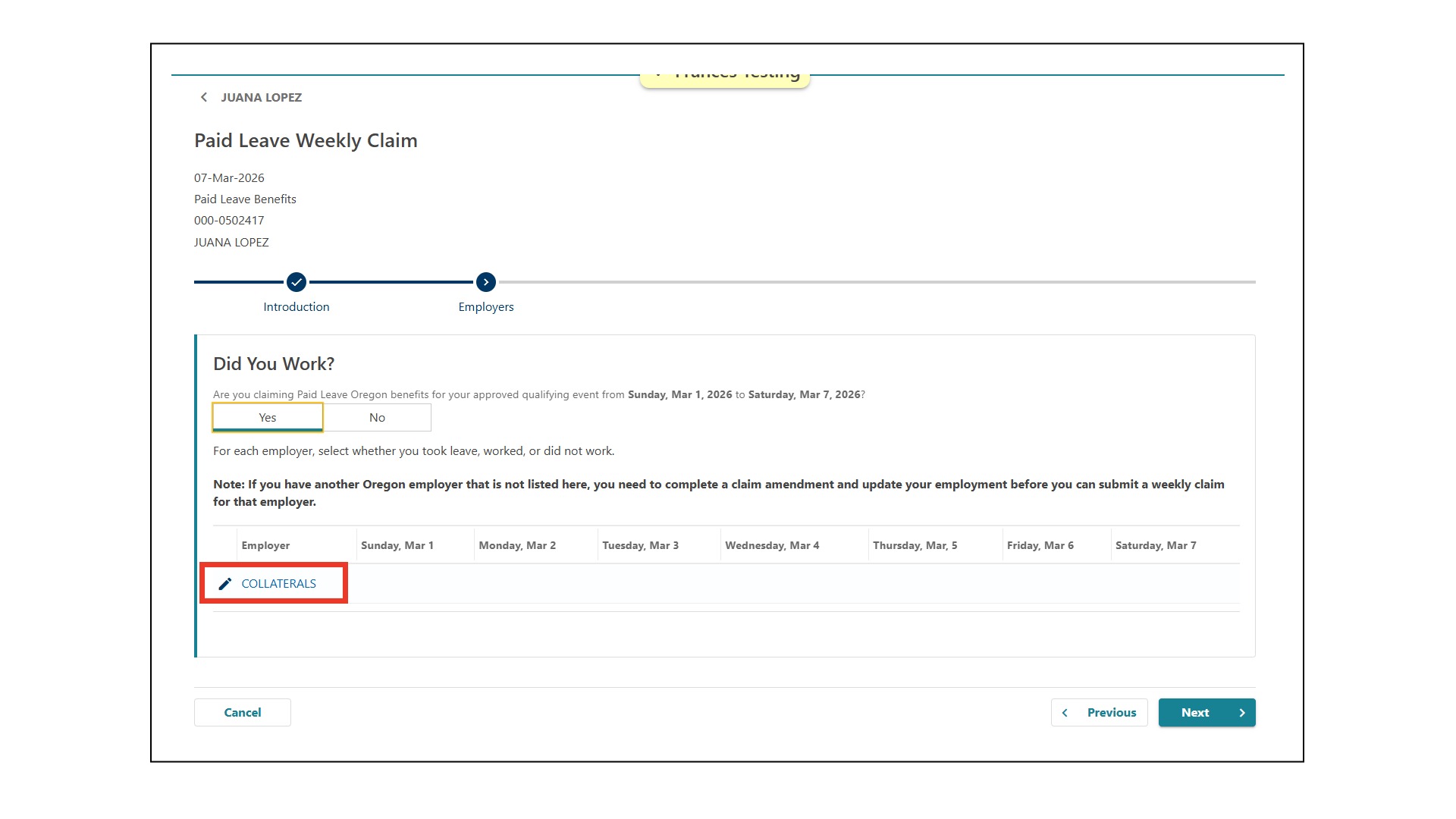
Your employers will appear on the bottom of the screen. Select the name of each employer to tell us what days you worked, what days you didn’t work, and what days you took Paid Leave. You will need to do this for each employer.
When you select an employer, the Employers window will open. For each day, use the dropdown menu to tell us if you worked, didn’t work, or didn’t work and want to receive Paid Leave benefits for that day.
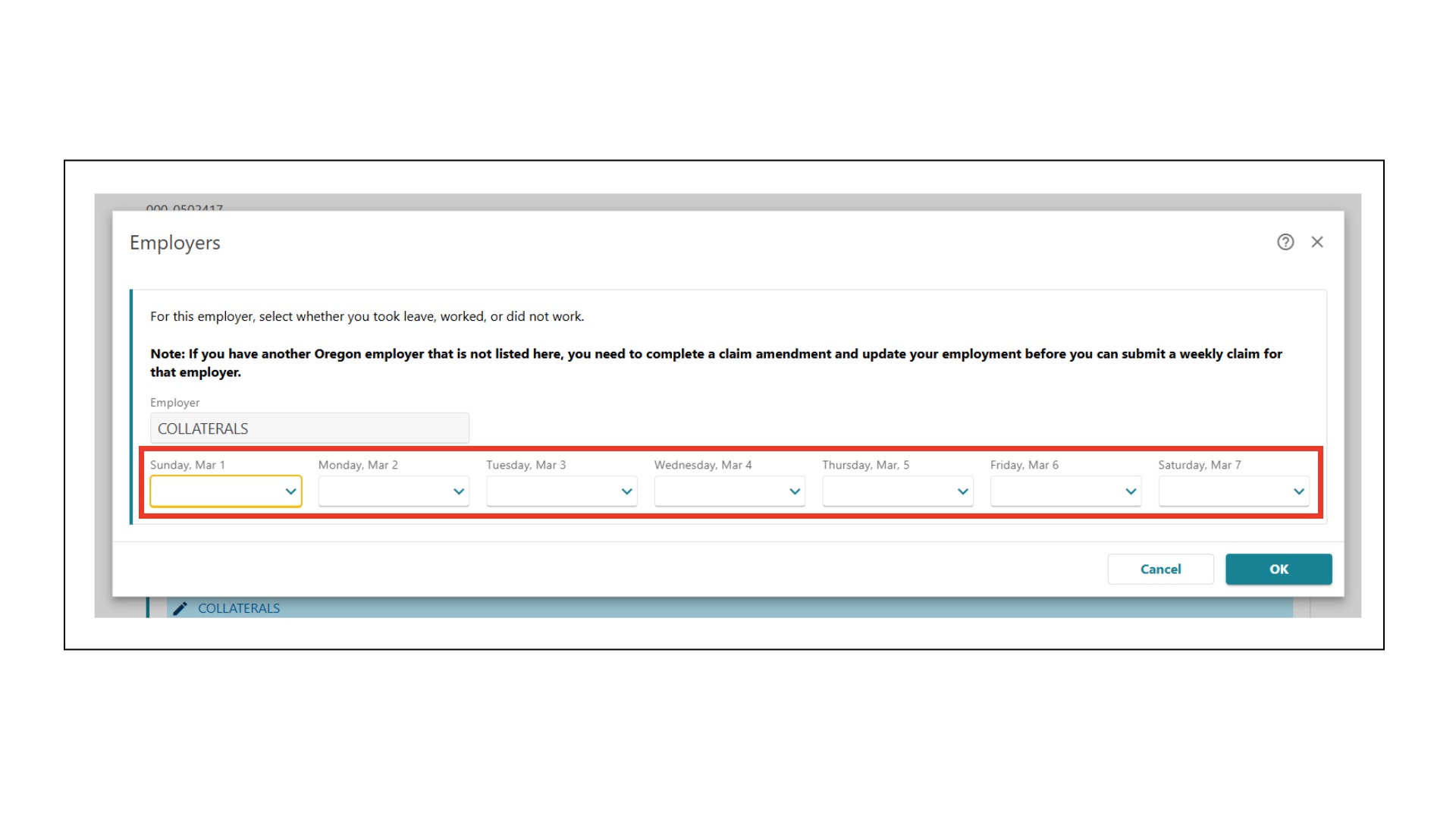
The options are:
- Took Paid Leave – you didn’t work and want to receive Paid Leave benefits for this day
- Did Not Work – you didn’t work this day
- Worked – you worked this day
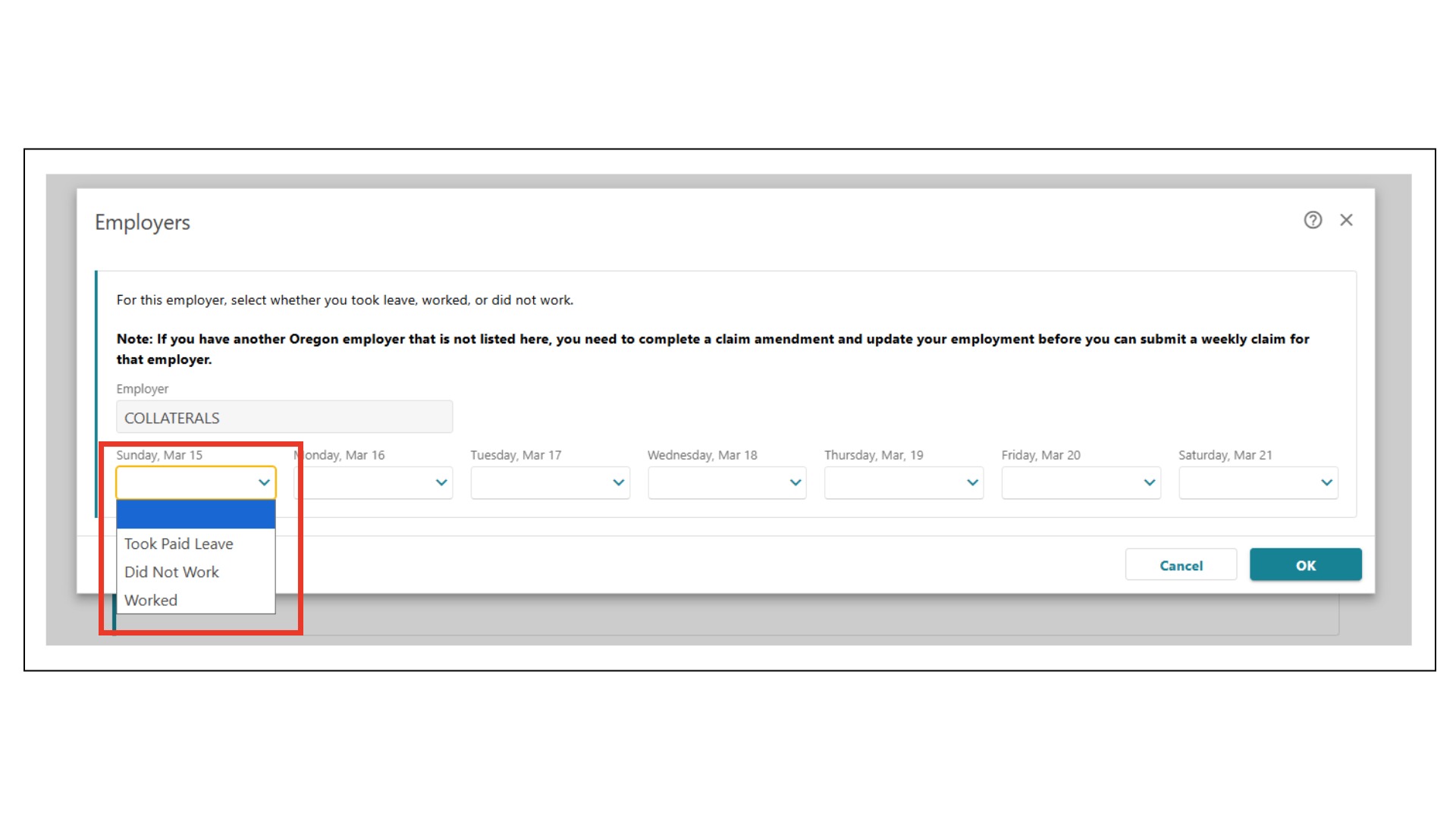
After you’ve filled in your work status for each day, select “OK.”
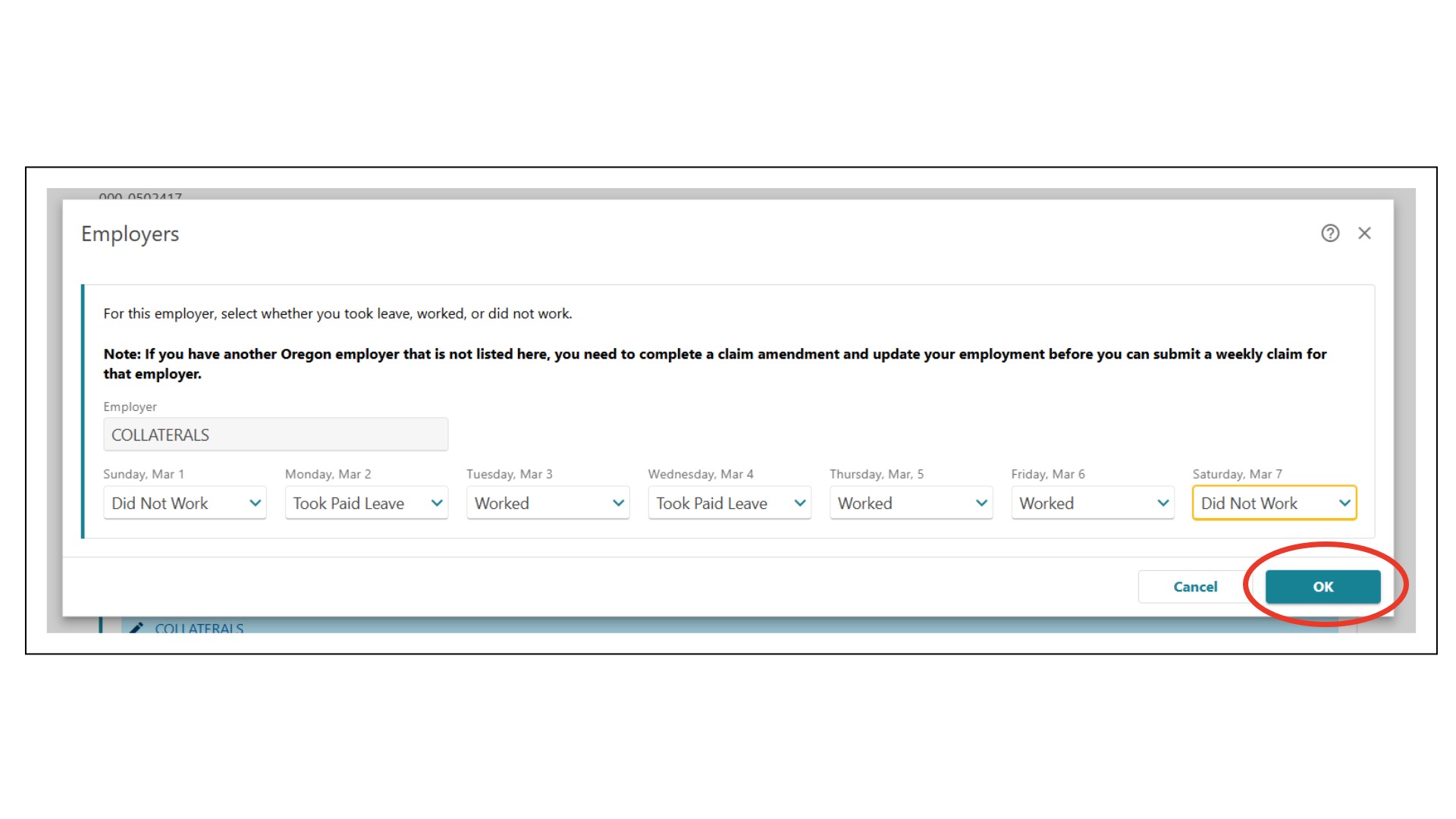
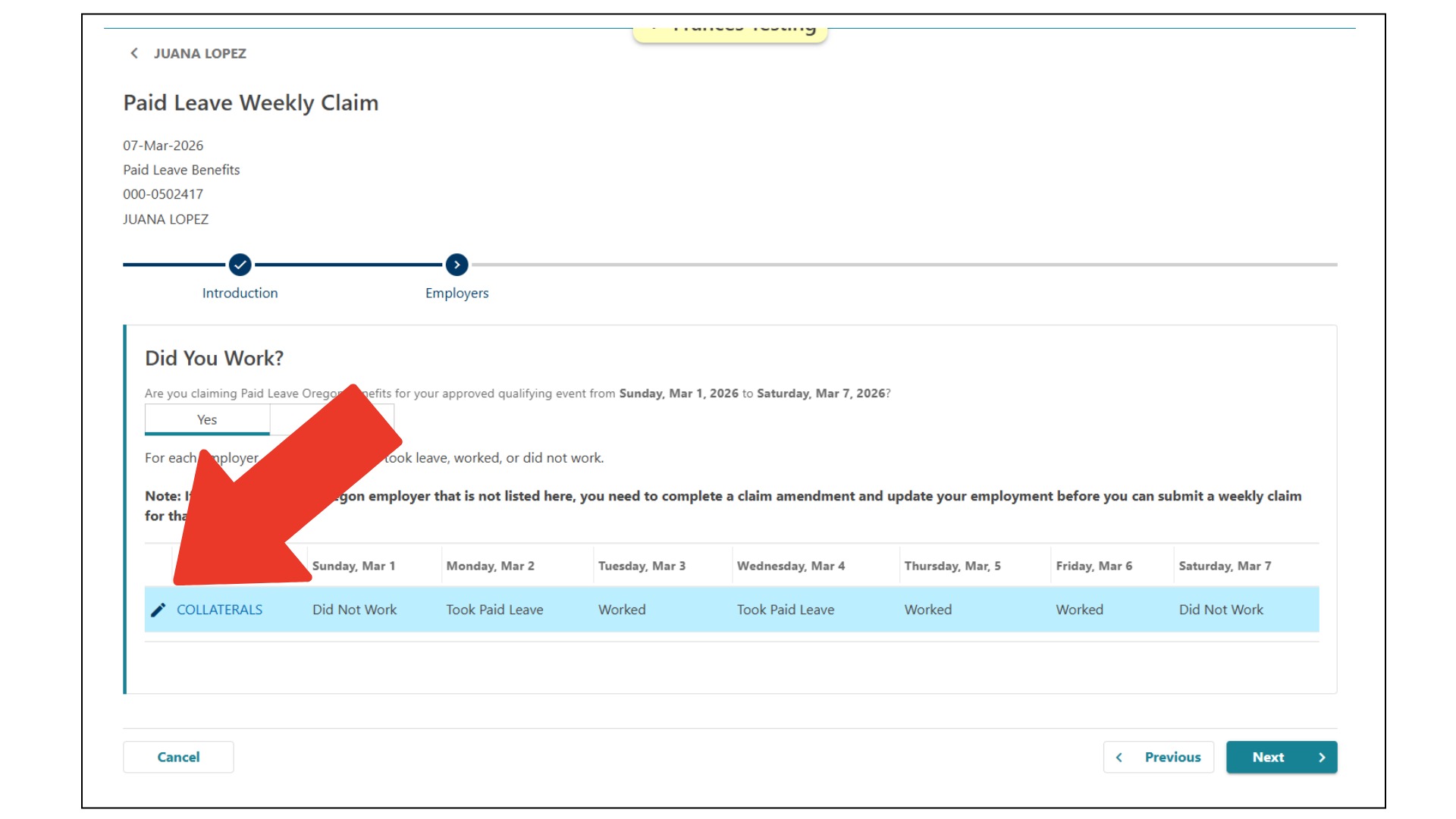
Verify your entry and make corrections
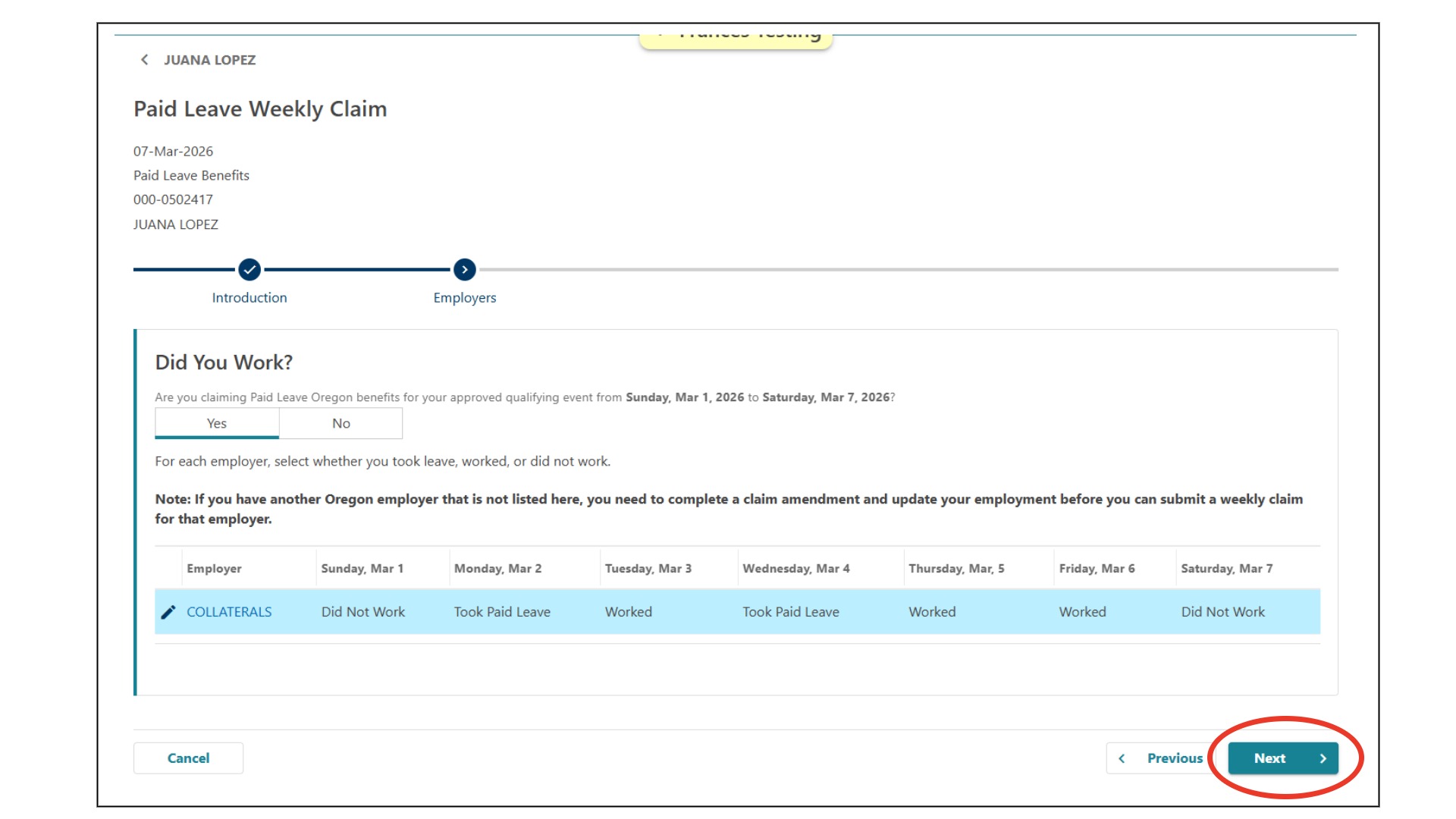
You will return to the Did You Work? screen. Make sure each day has an entry. If any of your entries are incorrect, select the pencil icon to edit them. In the Employer window that opens, make your corrections using the dropdown menus and then select “OK.”
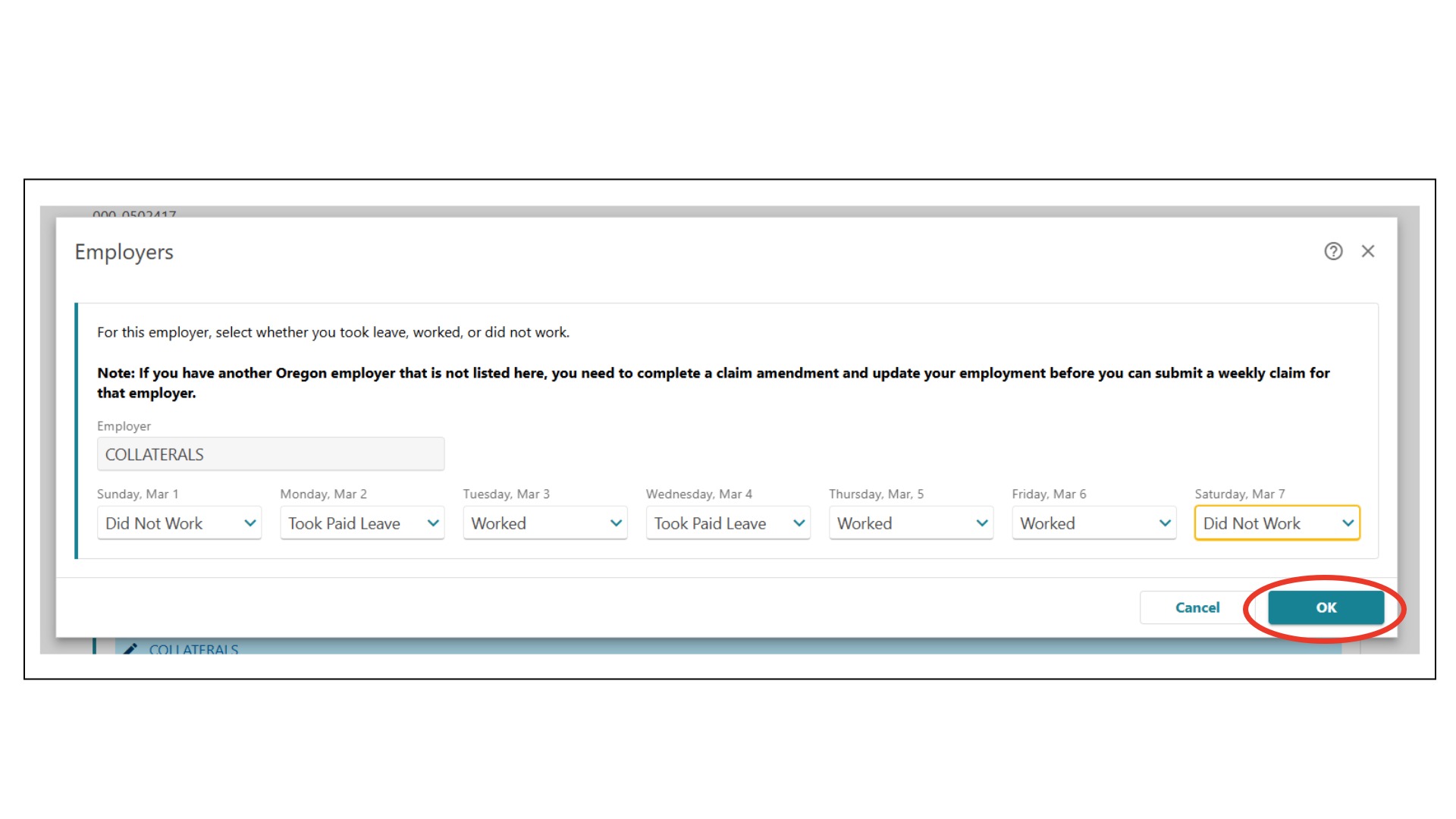
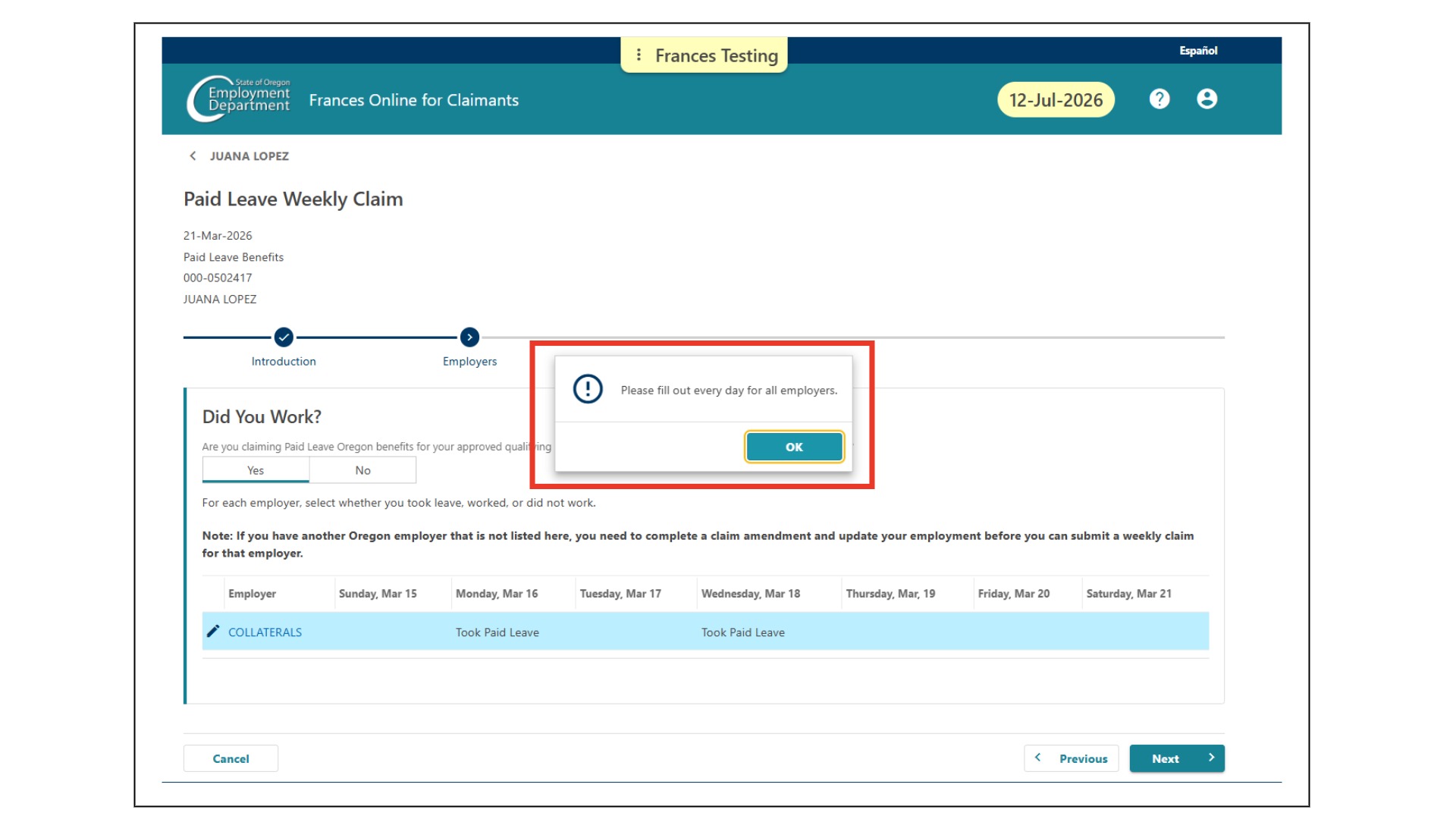
If you miss a day, you’ll see this error screen. Select “OK.” Select the pencil icon and make your corrections, and then select “OK” to return to the Did You Work? screen.
Select “Next.”
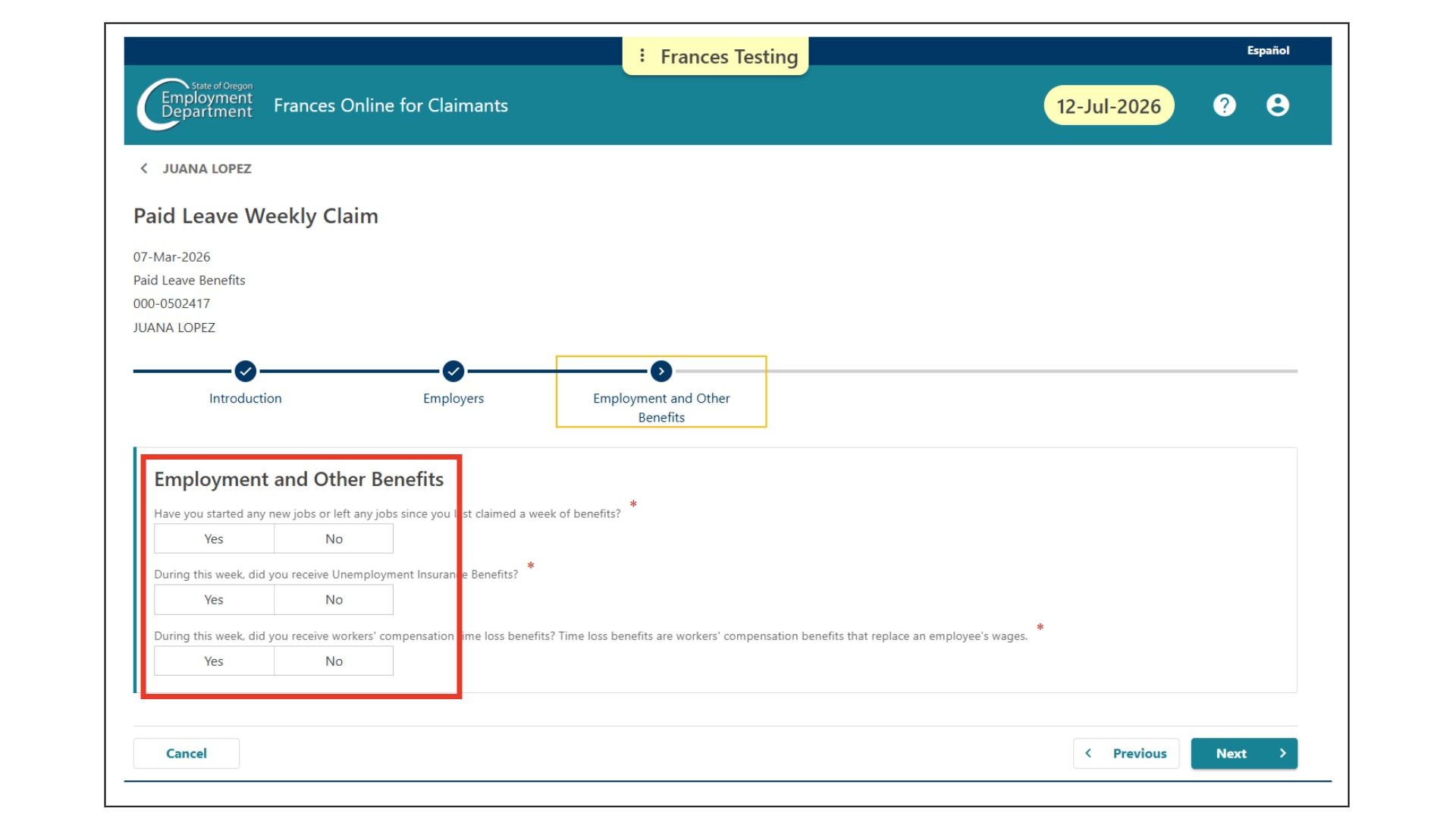
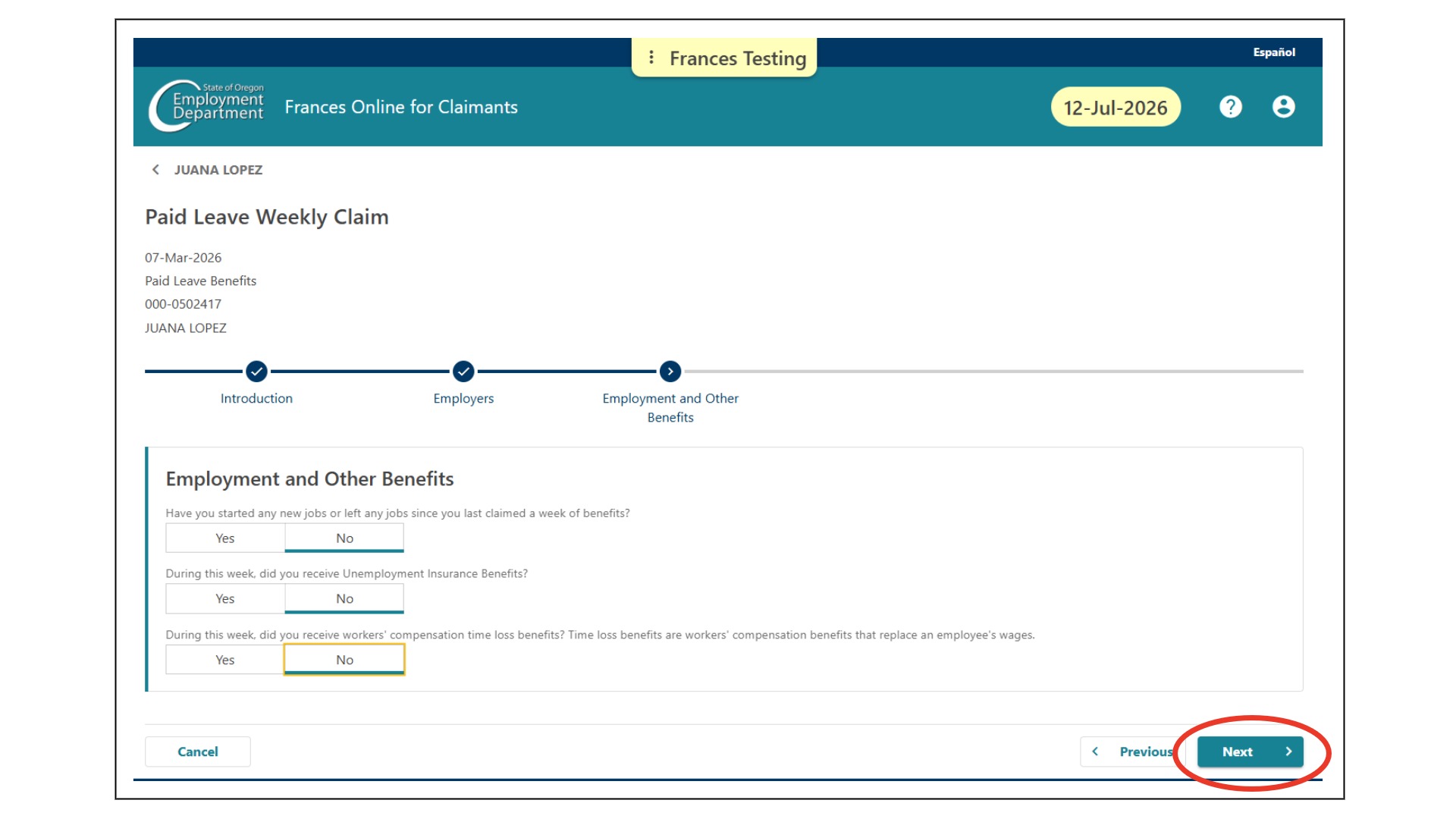
This is the Employment and Other Benefits screen. Answer the questions here.
The select "Next."
Review and confirmation
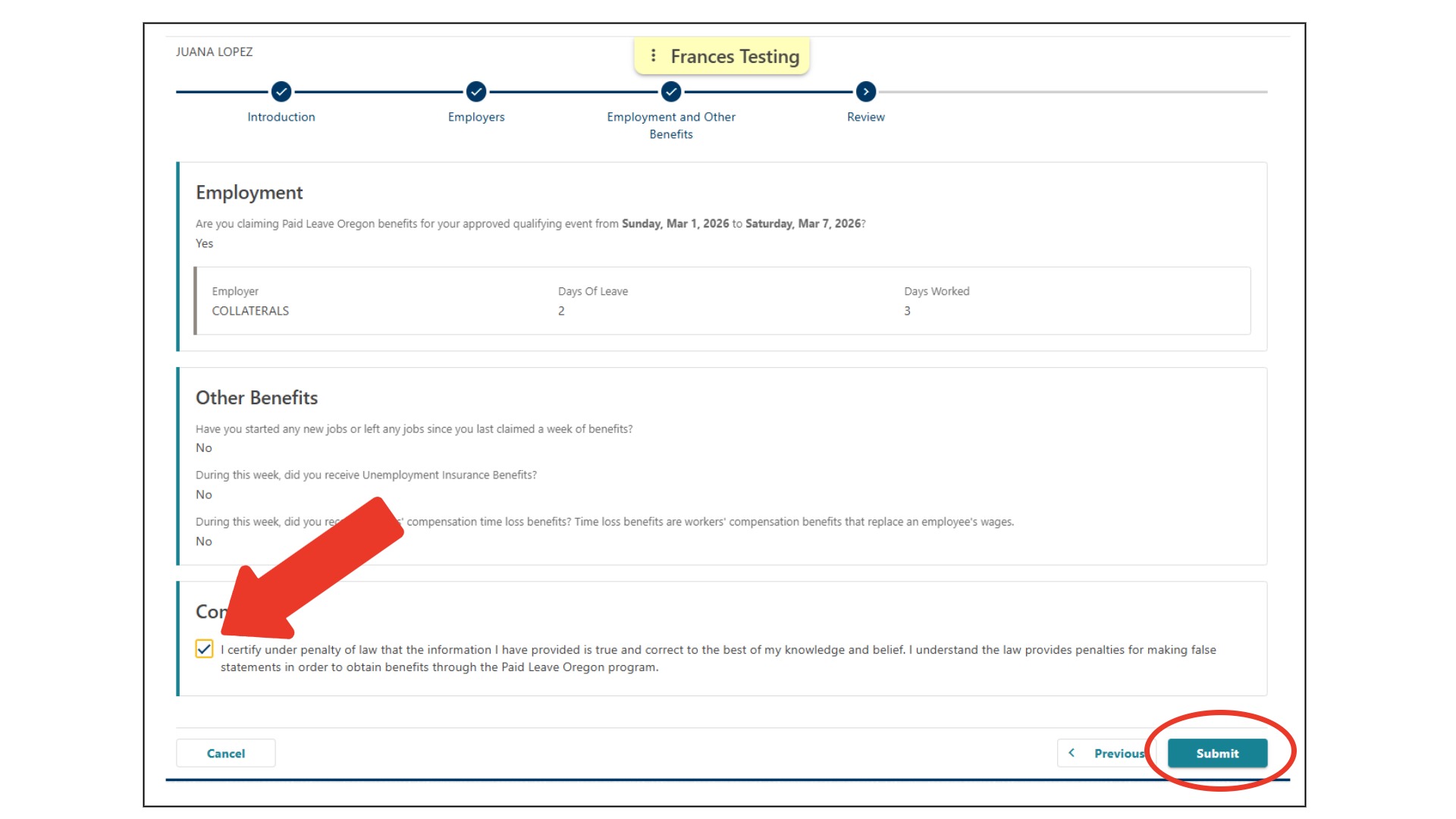
The review screen opens next. Review your information to make sure it’s correct. If you need to correct something, select the “Previous” button to go back. Select the box to confirm your information. Select “Submit” to finish your claim for this week.
Your confirmation screen will open. Select “OK.”
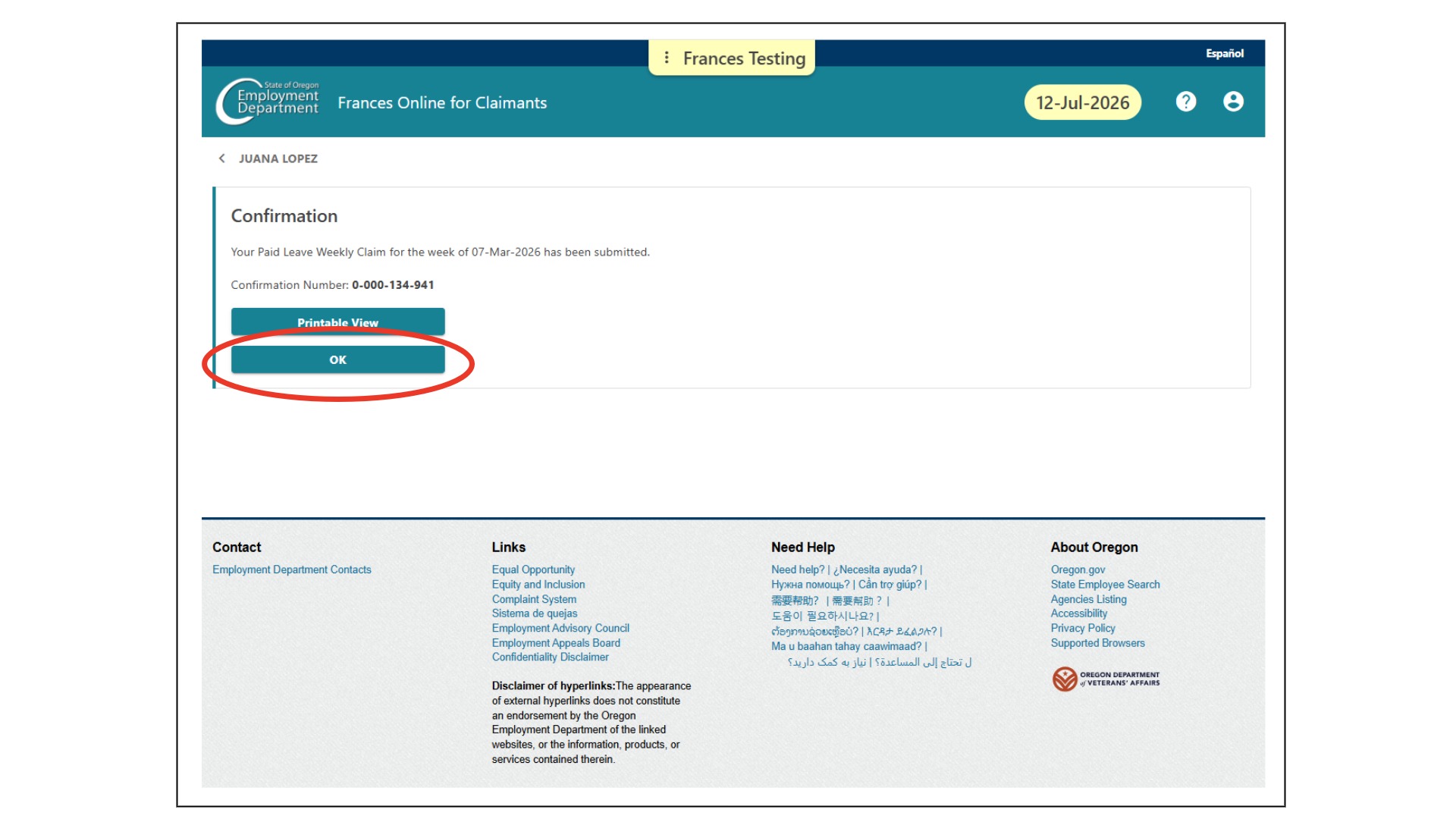
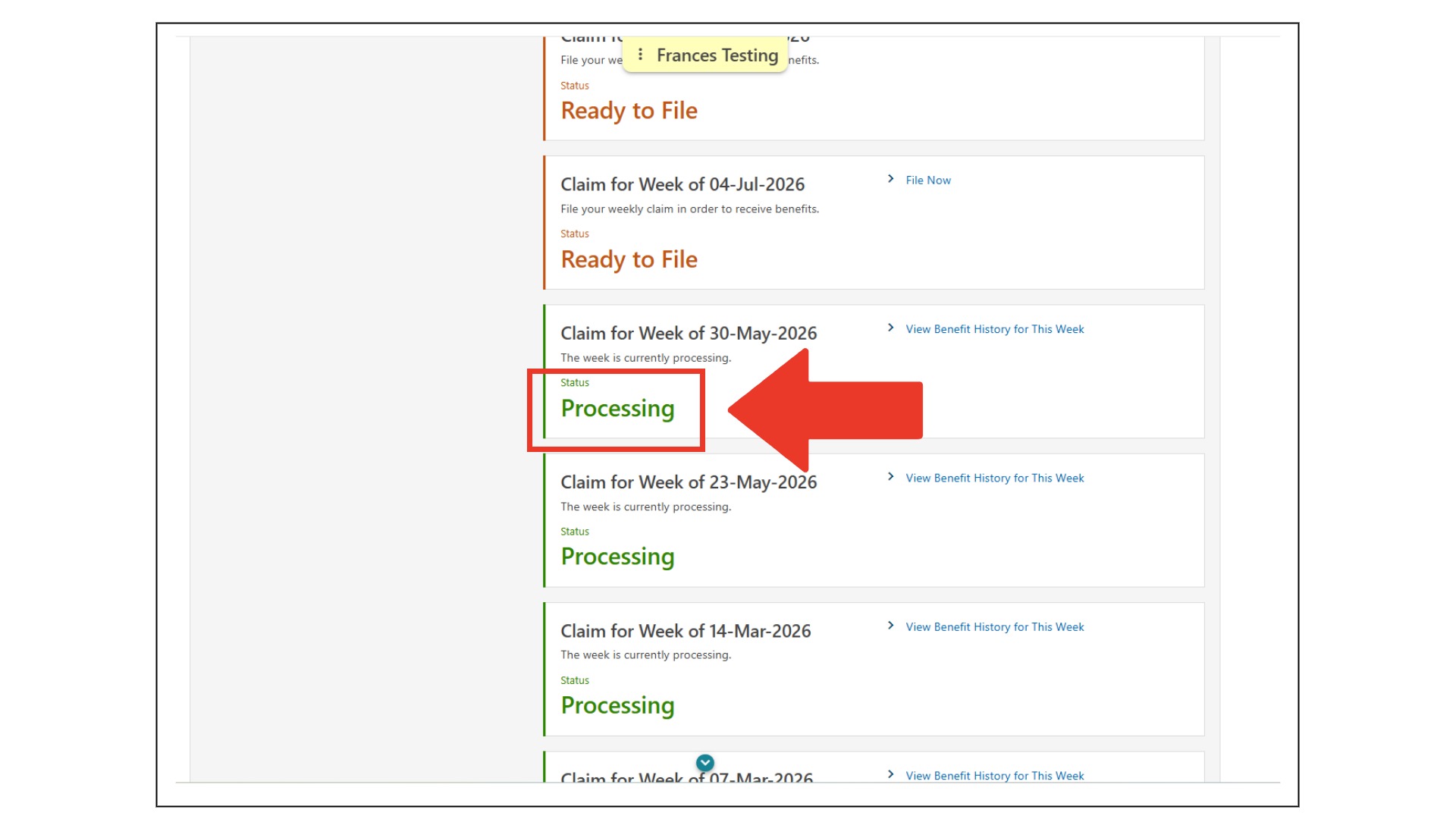
This will take you back to your Home screen. In your Current Paid Leave Oregon Benefits panel, the week you filed will move to the bottom of the list of weeks. It will have a green status message of “Processing.”